Do You Really Need That WordPress Plugin? When 10 Lines of Code Do the Job
The best plugin is the one you don't install. Here is why every plugin has a cost, six things I do with a few lines of code instead, and when you really should install the plugin.
A client sends me their WordPress dashboard login and asks why the site is slow. I open the Plugins page and count 47 active plugins. One adds a "Back to top" button. One changes the login logo. One hides the admin bar. One adds a Google Analytics tag. Each of them loads its own code, its own settings page, and often its own CSS and JavaScript on every page.
None of those needed a plugin. Each one is a few lines of code.
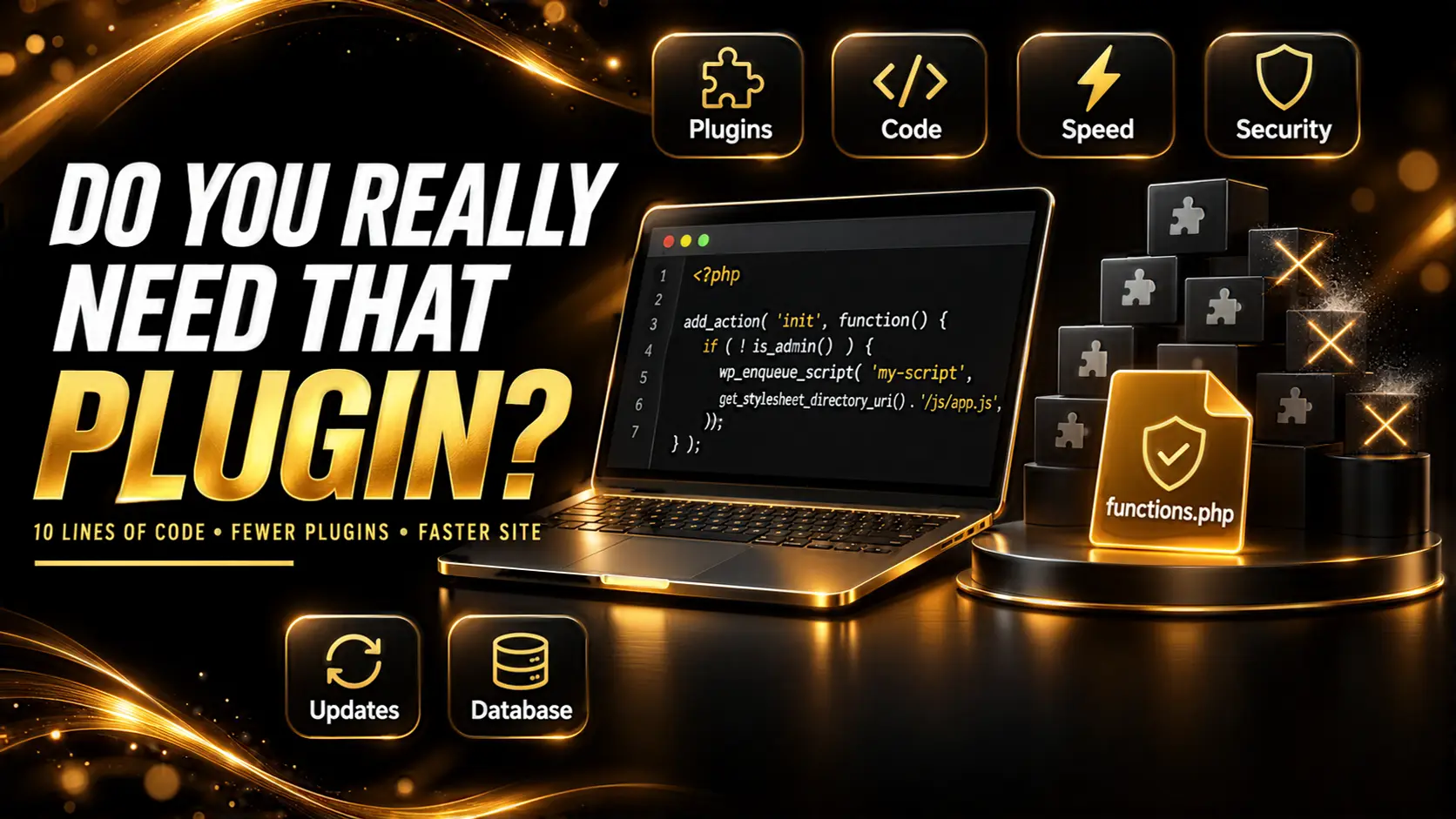
That's the idea behind something I posted recently: the best plugin is the one you don't install. Before adding one, ask a simple question. Can this be 10 lines in functions.php? This post explains why I ask it, shows real examples, and, just as important, covers when you really should install the plugin.
Why Every Plugin Has a Cost
A plugin isn't just the feature you wanted. You also get everything else that comes with it:
- Code on every request. Most plugins load on every page, even if their feature is used on one. Many add CSS and JS files site-wide.
- Database rows. Settings go into
wp_options, often autoloaded, and they usually stay there after you delete the plugin. - Updates to babysit. Every plugin is another thing to update, test and occasionally roll back.
- Security risk. Most WordPress hacks I clean up start with an outdated or abandoned plugin, not with WordPress itself.
- Conflicts. Two plugins that touch the same hook, or ship different versions of the same library, can break checkout in ways that take hours to trace.
- Upsells and admin clutter. Banners, notices and "Go Pro" menus in a client's dashboard.
One small plugin won't sink a site. Forty small plugins added over three years will. If your site is already slow, my post on why WooCommerce stores get slow and how I fix them covers the full checklist.
Where Should the Code Go?
The tweet says functions.php, and that's fine for a quick fix in a child theme. Never edit the parent theme's file. A theme update will wipe your changes.
For anything that isn't about how the site looks, I prefer a small must-use plugin. Create the folder wp-content/mu-plugins/ if it doesn't exist, add a file like site-tweaks.php, and WordPress loads it automatically. It can't be switched off by accident, and it keeps working if you change theme.
<?php
/**
 * Plugin Name: Site Tweaks
 * Description: Small custom changes for this site.
 */

defined( 'ABSPATH' ) || exit;

// Your snippets go below.
Yes, that's technically a plugin. The difference is that it's your code, with nothing in it you didn't put there.
Six Things I Do Without a Plugin
Here are snippets I use on client sites again and again. Test each one on a staging copy first.
1. Turn off XML-RPC
Most sites don't use XML-RPC, and it's a common target for login attacks. There are whole plugins for this. It's one line:
add_filter( 'xmlrpc_enabled', '__return_false' );Skip this if you use the Jetpack plugin or the WordPress mobile app, since they can rely on it.
2. Hide the admin bar for customers
On WooCommerce and Dokan sites, customers and vendors don't need the black WordPress bar on the front end.
add_filter( 'show_admin_bar', function ( $show ) {
    return current_user_can( 'manage_options' ) ? $show : false;
} );
3. Change the "Add to cart" button text
add_filter( 'woocommerce_product_single_add_to_cart_text', function () {
    return 'Buy now';
} );
add_filter( 'woocommerce_product_add_to_cart_text', function () {
    return 'Buy now';
} );
The first filter is the single product page, the second is shop and category pages.
4. Add a tracking script to the head
Google Analytics, Meta Pixel, Search Console verification. You don't need a "header and footer scripts" plugin for one tag.
add_action( 'wp_head', function () {
    ?>
    <!-- Paste the tracking code here -->
    <?php
}, 20 );
5. Set a minimum order amount
A store owner wanted orders under $20 blocked at checkout. The plugin they'd found had a yearly licence. This does the same job:
add_action( 'woocommerce_checkout_process', 'izs_minimum_order_amount' );
add_action( 'woocommerce_before_cart', 'izs_minimum_order_amount' );

function izs_minimum_order_amount() {
    $minimum = 20;
    $total   = WC()->cart->get_subtotal();

    if ( $total < $minimum ) {
        $message = sprintf(
            'Your order is %s. The minimum order is %s.',
            wc_price( $total ),
            wc_price( $minimum )
        );

        if ( is_cart() ) {
            wc_print_notice( $message, 'error' );
        } else {
            wc_add_notice( $message, 'error' );
        }
    }
}
6. Limit post revisions
This one goes in wp-config.php, above the "That's all, stop editing" line. It stops the posts table from filling up with hundreds of old copies.
define( 'WP_POST_REVISIONS', 5 );When You Should Install the Plugin
This isn't a rule against plugins. I build plugins for a living, and a good plugin is often the right call. I install one when:
- It's security or money. Payment gateways, backups, security scanning, two-factor login. These need constant updates by people whose full-time job is that one thing. Don't hand-roll a Stripe integration to save a plugin slot.
- It's a big feature. WooCommerce, Dokan, a multilingual setup, an SEO plugin, a caching plugin. Rebuilding those would take months and you'd still do it worse.
- The client needs to change it. If a non-developer has to adjust the setting every week, a settings screen is worth more than clean code they can't touch.
- It needs to be maintained. Your snippet is yours to fix when WooCommerce changes a hook. A popular plugin gets fixed for you.
The Questions I Ask Before Installing Anything
- Can this be done in under about 20 lines of code with a WordPress or WooCommerce hook?
- Does the plugin load on every page when I need it on one?
- When was it last updated, and does it support my WordPress and PHP versions?
- How many active installs and recent support replies does it have?
- Does another plugin I already use do this?
- If I remove it in a year, what does it leave behind in the database?
If the answer to the first question is yes and the feature isn't security or payments, I write the code.
Final Thoughts
Every plugin you skip is one less update, one less conflict and one less file loading on every page. Small changes belong in a child theme or a must-use plugin. Big, risky or client-managed features belong in a well-maintained plugin. The skill is knowing which is which.
If your site has grown into a long list of plugins and you'd like someone to go through them, this is part of my Bug Fixing & Performance service. I check what each plugin does, replace the small ones with clean code where it makes sense, and leave you with fewer moving parts.