WooCommerce Orders Stuck in Pending Payment: Causes and Fixes
The customer paid, but the order is still sitting in Pending payment. Here's what that status really means, the seven usual reasons payments don't reach WooCommerce, and how I find and fix the one that's breaking your store.
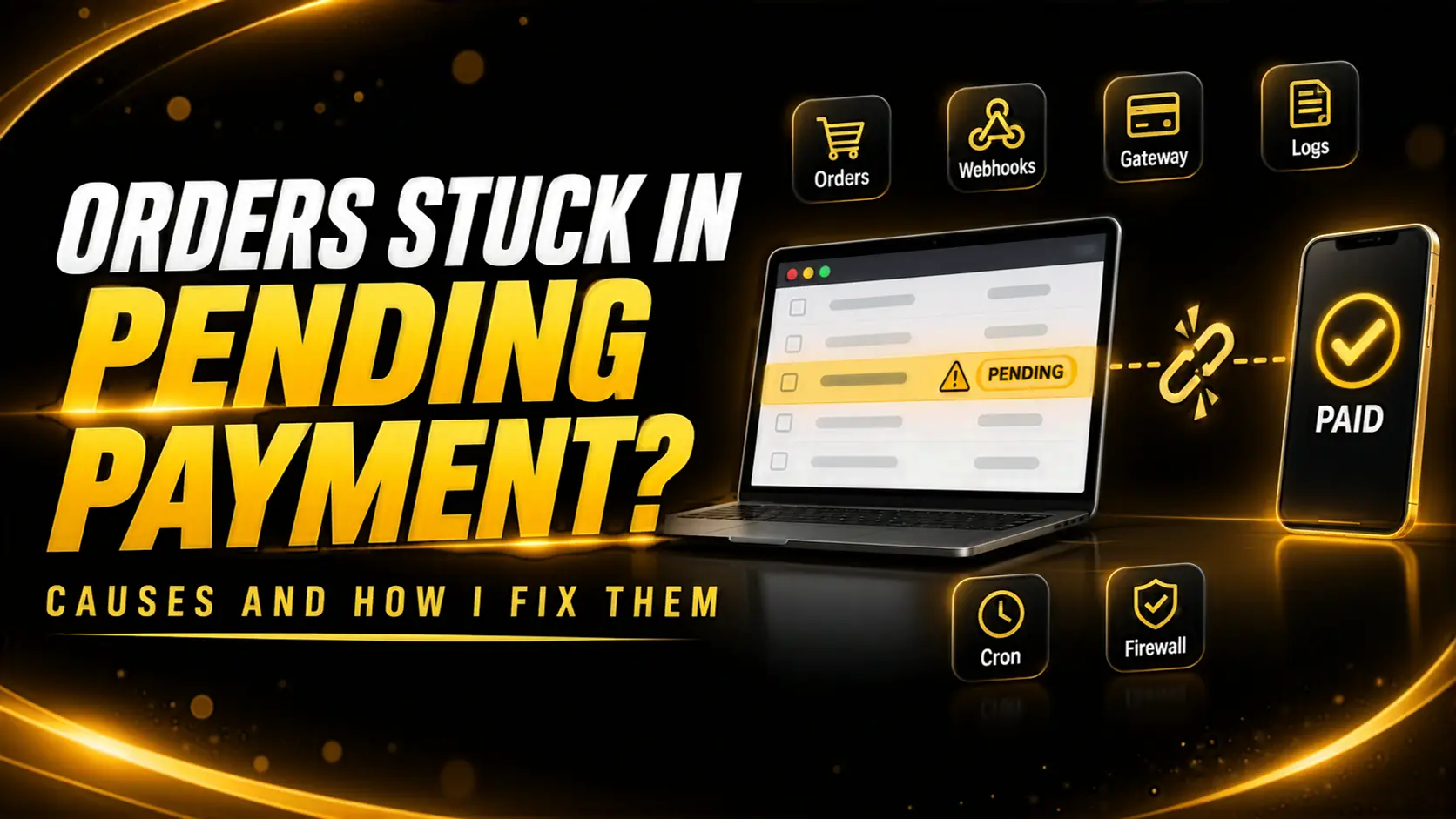
A customer emails you: "I paid, where's my order?" You open WooCommerce and there it is, sitting in Pending payment. No stock reduced, no confirmation email, nothing sent to the warehouse. Then you log in to Stripe or PayPal and the money is right there.
So the customer paid, and your store has no idea.
I get this one a lot, and it's rarely a WooCommerce bug. Something between the payment gateway and your site stopped talking. This post covers what Pending payment actually means, the usual reasons orders get stuck there, and how I track down which one it is.
What "Pending payment" Really Means
WooCommerce creates the order the moment the customer clicks Place order. At that point nobody has paid yet, so the order starts as Pending payment. It's meant to be a short stop.
Then the gateway has to tell your store the payment went through. Most gateways do that in one or both of these ways:
- The customer comes back. After paying, the browser returns to your thank-you page, and the gateway plugin checks the payment and updates the order.
- The gateway calls your server. Stripe sends a webhook, PayPal sends an IPN or webhook. This is a message from their server to yours, and it doesn't depend on the customer at all.
If the customer closes the tab before the redirect finishes, the webhook is the only thing left. If the webhook fails too, the order just sits there.
One thing to know before you panic: some pending orders are normal. People reach the PayPal screen, change their mind and leave. Those orders never get paid, and WooCommerce will cancel them on its own if stock management is on. The setting is Hold stock (minutes) under WooCommerce > Settings > Products > Inventory. Leave that field empty and abandoned orders stay pending forever, which makes the real problem much harder to spot.
First, Check Whether the Money Arrived
Before changing anything, compare the order with the gateway. Open the order in WooCommerce, note the order number and the total, then search for it in your Stripe or PayPal dashboard.
- No payment in the gateway: the customer didn't finish paying. Nothing is broken. It's an abandoned checkout.
- Payment marked as succeeded: the money is there and the store didn't hear about it. This is the case worth fixing.
- Payment failed or declined: the order should normally move to Failed. If it stays Pending, the gateway's message isn't reaching you either way.
Also read the order notes in the right sidebar of the order screen. A healthy Stripe order usually has a note from the plugin saying the charge was completed. If you see nothing after the order was created, the store never got a reply.
A quick side note on offline methods. Direct bank transfer and cheque orders go to On hold, and cash on delivery goes to Processing. If those are showing up as Pending, something else on the site is interfering with checkout, not the gateway.
Cause 1: The Webhook Points to the Wrong Place
This is the most common one, especially after a site move. The webhook URL is saved in the Stripe or PayPal dashboard, not in WordPress. When you change domain, switch to HTTPS or move to a new host, that URL doesn't update itself.
In Stripe, go to Developers > Webhooks and open your endpoint. Stripe shows every delivery attempt with the response it got back. A row of failures with 404 or timeout errors tells you straight away that the messages aren't landing. The WooCommerce Stripe plugin shows the correct webhook URL on its settings page, so copy it from there rather than typing it.
Check the signing secret too. If someone recreated the endpoint in Stripe and didn't paste the new secret into WooCommerce, the webhook arrives, the signature check fails, and the plugin throws the message away.
If you're planning a move, I wrote about this and other things that break in my post on migrating a WooCommerce store without losing orders.
Cause 2: A Redirect Swallows the Request
Your site redirects http:// to https://, or www to the bare domain. Fine for visitors. But if the webhook URL in the gateway uses the old version, the request hits a redirect first.
Stripe doesn't follow redirects for webhooks. It sees the 301 and treats it as a failed delivery. So the endpoint looks "almost right", which is why people miss it. The URL in the gateway has to be the final URL, exactly as your site serves it.
Cause 3: A Firewall or Security Plugin Blocks It
Webhooks are automated POST requests from servers you don't control. To a firewall, that looks a lot like a bot. I've seen these block payment callbacks:
- Cloudflare WAF rules or Bot Fight Mode.
- Security plugins like Wordfence with strict rate limiting or country blocking.
- Host-level firewalls (ModSecurity) that dislike the request body.
The giveaway is a 403 response in the gateway's delivery log. The fix is to allow the gateway's callback path, for example the ?wc-api= URL or the plugin's REST route, rather than switching the firewall off.
Cause 4: Caching on the Callback URL
Full-page caching should never touch checkout, cart, my account or the gateway callback URLs. Most cache plugins skip WooCommerce pages by default, but server-level caching and CDN rules don't always know about them.
If a cached response comes back, the gateway gets a 200 and thinks the job's done. Your store never ran any code. This is a nasty one because the gateway log looks perfectly healthy. Check that requests to the callback URL bypass the cache, and look for cache headers like cf-cache-status: HIT on that path.
Cause 5: Something Crashes After the Payment
Sometimes the webhook arrives fine and WooCommerce starts updating the order, then another plugin breaks it. When an order moves to Processing, a lot of code runs: emails go out, stock drops, and plugins hook in to sync with a CRM, a shipping service or an accounting tool.
If one of those hits a PHP fatal error, the whole request dies. The gateway gets a 500 error and the order stays pending, or ends up half updated.
Look in WooCommerce > Status > Logs. There's usually a fatal-errors log and one for your gateway. The error message normally names the plugin file that crashed, which makes this cause one of the faster ones to fix once you find it.
Cause 6: Scheduled Tasks Aren't Running
WooCommerce leans on WP-Cron and Action Scheduler for background work. WP-Cron only runs when someone visits the site, so on a quiet store, or on a host that disables it, jobs pile up.
Go to WooCommerce > Status > Scheduled Actions and filter by Pending. If you see hundreds of actions that are hours or days past due, cron isn't working. That won't always stop payments landing, but it does stop things like auto-cancelling unpaid orders and some gateway follow-up checks.
The proper fix is a real server cron job that calls wp-cron.php every few minutes, with DISABLE_WP_CRON set to true in wp-config.php so it doesn't also run on page loads.
Cause 7: A Staging Site Is Taking the Webhooks
This one catches people out. You clone the live site to staging, and the staging copy still has the live gateway keys. Now there are two sites that think they own the same Stripe account.
Depending on how the webhooks are set up, payment messages can end up at the staging site, which has no idea what those orders are. Always switch staging to test mode or remove the keys right after cloning.
What to Do With Orders That Are Already Stuck
Don't bulk-change everything to Processing. Some of those orders really weren't paid, and you'd be shipping free products.
Go through them one at a time:
- Find the matching payment in the gateway dashboard.
- Check the amount and the customer email match.
- Change the order status to Processing and add an order note with the gateway transaction ID.
- Make sure stock went down and the customer got their email. If not, resend it from the order actions menu.
It's slow, but it's the only safe way. Once the cause is fixed, new orders should move on their own.
How I Stop It Coming Back
After fixing the actual cause, I add a few checks so the next failure gets noticed in minutes, not after a week of support emails:
- Turn on webhook failure emails in Stripe. It warns you when an endpoint keeps failing.
- Keep the gateway plugin's debug log on for a while after any change.
- Place a real low-value test order after every plugin, theme or hosting update, and refund it.
- Set Hold stock to something sensible, like 60 minutes, so abandoned orders clear out and real stuck ones stand out.
Final Thoughts
An order stuck in Pending payment almost always comes down to one question: did the gateway's message reach your store, and did your store finish handling it? The gateway's delivery log and the WooCommerce logs answer that between them. Check those before you reinstall plugins or switch gateways.
If customers are paying and orders still aren't coming through, this is the kind of problem I fix through my Bug Fixing & Performance service. I find the cause first and tell you what it is before any work starts. And if your store feels slow at checkout too, have a look at why WooCommerce stores get slow and how I fix them.