How I Test a WooCommerce Checkout Before Going Live
A store can look perfect and still fail to take a single payment. This is the 12-point checkout test I run after every migration, big update and new payment plugin, and what each failure usually means.
A client moved their store to a faster host on a Sunday night. The homepage loaded fine, the products loaded fine, and everyone went to bed happy. On Monday morning there were zero new orders. The payment plugin on the new server was still in test mode, because its settings had come from a staging copy of the database. Customers filled in their card details, pressed Place order and got a vague error. Most of them didn't try twice.
Nobody had tested checkout. They had tested the homepage.
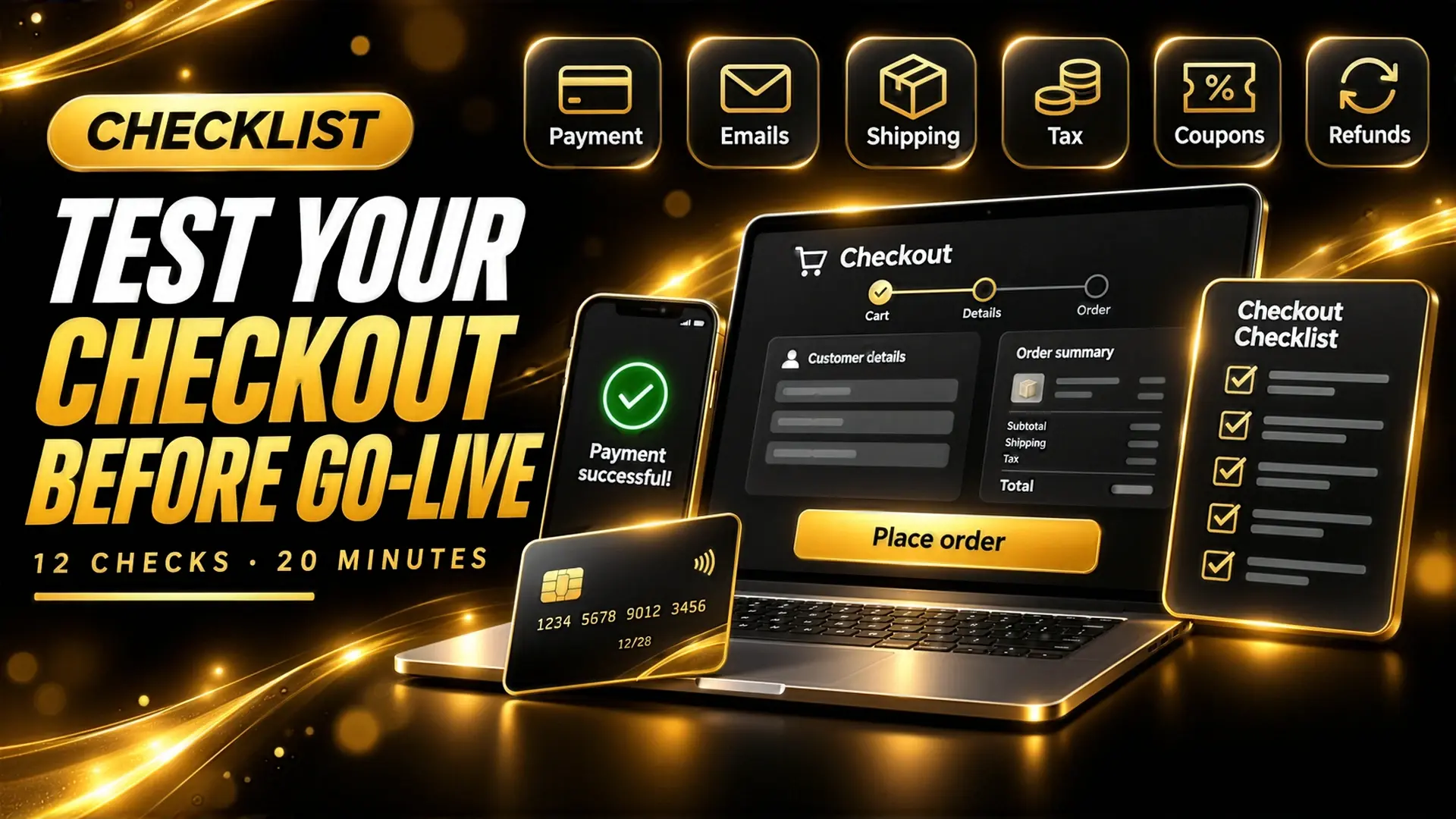
I posted about this on X this week: when you move a WooCommerce store, the last step before going live is testing checkout. Not a quick look at the homepage, a real test. This is the list I actually run. It takes about 20 minutes, and I run it after every migration, every major WooCommerce update and every time a new payment or shipping plugin goes in.
If you're planning a move to a new host, read my post on migrating a WooCommerce store without losing orders or SEO first. This post picks up where that one ends.
Test Mode or a Real Card?
Both. Test mode (Stripe test keys, the PayPal sandbox and so on) lets you try declined cards, 3D Secure and refunds without spending anything. But test mode doesn't prove your live keys work. So I run the full list in test mode on staging, then place one real order on the live site with my own card and refund it straight away.
If the store has nothing cheap to buy, I create a 1 dollar product (or the local equivalent), set its catalog visibility to Hidden so customers don't see it, and delete it when I'm done.
1. Guest Checkout and Logged-In Checkout
Place one order as a guest in a private window and one while logged in as a customer. They run through different code. Plugins that add fields, discounts or member pricing often work for one and break the other. If you let people create an account at checkout, tick that box once and make sure the account really gets created.
2. Every Payment Method You Offer
Not just the main one. If you offer cards, PayPal, bank transfer and cash on delivery, test all four. For cards, try three things:
- A card that goes through.
- A card that gets declined. The customer should see a clear message and stay on the checkout page with their details still filled in.
- A card that needs 3D Secure. Close the popup halfway once and see what happens to the order.
Stripe and most other gateways publish test card numbers for each of these cases.
3. Order Status After Payment
Open the order in WooCommerce admin. A paid card order should be Processing, or Completed for virtual and downloadable products. If it sits on Pending payment, the gateway's webhook probably isn't reaching your site. I wrote a full post on orders stuck on Pending payment because it's the thing I see most often after a migration.
Also read the order notes. A healthy order has a note from the gateway with a transaction ID in it.
4. Emails, All of Them
The customer should get the order confirmation. You should get the New order email. Both should land in the inbox, not spam. After a host move, email is usually the first thing to break, because the new server isn't set up to send mail for your domain yet. If emails are missing, send them through SMTP with a proper mail service and add the SPF and DKIM records it gives you.
Then mark the test order as Completed and check that email too. Cancel a second test order and check the Cancelled order email reaches you.
5. Shipping Rates for Real Addresses
Type in at least three addresses: one in your main zone, one in a zone with different rates and one you don't ship to. The last one should show a clear "no shipping options" message, not a spinner that never stops. If you have free shipping above a certain amount, test a cart just under that amount and one just over it.
6. Taxes
Compare the tax on the checkout page, in the order email and on the invoice. They should match to the cent. If your prices include tax, the total shouldn't jump around when the customer types in their address.
7. Coupons
Apply a percentage coupon, a fixed amount coupon and an expired one. The expired one should show an error. If you have a minimum spend rule, test it. Coupons that stack when they shouldn't are a quiet way to lose money for months.
8. Stock Goes Down (and Back Up)
Write down the stock of a product before the order and check it after. For variable products, check the variation's stock, not the parent product. If an order is cancelled or fails, the stock should go back up.
9. Refunds
Refund a test order from inside WooCommerce using the gateway's refund button, not just by changing the status. Then check the gateway dashboard to see the money actually went back, and check the customer got the refund email. A lot of store owners only find out refunds are broken when an angry customer is waiting for one.
10. The Whole Thing on a Real Phone
Go through checkout on an actual phone, ideally a cheap Android on mobile data. Look for the Place order button hidden behind a cookie bar or a chat bubble, the keyboard covering fields, and Apple Pay or Google Pay buttons that don't show up.
11. Thank You Page and Tracking
The order received page should show the right order number and total. If you run Google Ads, Meta ads or GA4, check that the purchase event fires once, with the right value. If it fires twice, your ad reports show double the sales you really made, and you'll make budget decisions on fake numbers.
12. Cache Isn't Touching Cart and Checkout
Add a product to the cart in one browser, then open the cart page in a different browser. If the second browser shows the first one's cart, your cache is serving cart pages to everyone. Cart, checkout and My account must be excluded from page cache. Most caching plugins handle this for WooCommerce, but some host-level caches don't.
How I Keep Track
I keep this list in a simple spreadsheet with one column per test date. A tick, a cross and a short note. When something breaks months later, I can look back and see when it last worked. It also makes life easy with clients: here's what I tested, here's what passed, here's what I fixed.
Final Thoughts
A store that's down gets noticed in minutes. A store that looks fine but can't take a payment can go unnoticed for days. Twenty minutes of testing after every big change is the cheapest insurance you'll ever buy.
If you'd rather someone else ran these checks, or something on this list is already failing, that's what my WooCommerce Bug Fixing & Performance service is for. I'll test the full checkout, fix what's broken and send you the list with every result.