WooCommerce Migration Night: Why I Close the Store Before Moving It (Step-by-Step Cutover)
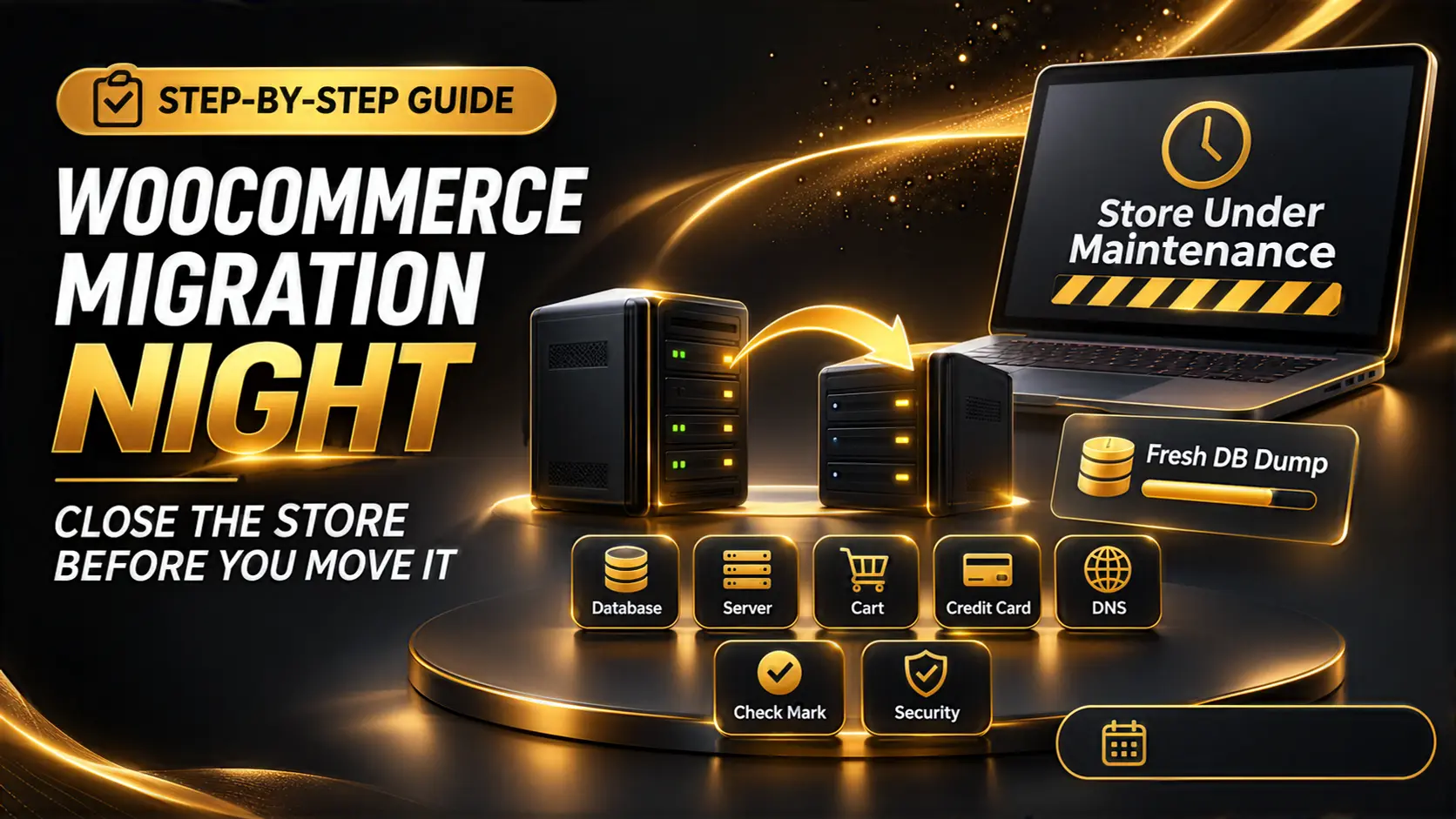
Never migrate a WooCommerce store while orders are coming in. Here is the exact runbook I follow on migration night: maintenance mode, a fresh database dump, the move, a real checkout test, then go live.
Last year a client moved their WooCommerce store to a new host on a busy weekday afternoon. The files and database were copied in the morning, DNS was switched after lunch, and everything looked fine. Two days later a customer emailed asking about an order that had been paid for but didn't exist anywhere in the new dashboard.
The payment was real. Stripe had it. The order had been placed on the old server during the hours between the database copy and the DNS switch. When the site moved, that order stayed behind.
That is why I posted this rule recently: never migrate a WooCommerce store while orders are coming in. Maintenance mode, fresh database dump, move, test checkout, then go live. This post is the step-by-step version of that rule, the exact runbook I follow on migration night.
Why a Live Store Can't Be Copied Like a Blog
A normal WordPress blog barely changes from hour to hour. If you copy it at 10am and switch DNS at 3pm, you might miss one comment. A WooCommerce store is different. Every few minutes the database changes:
- New orders and order notes
- Stock levels going down
- New customer accounts and saved addresses
- Coupon usage counts
- Subscription renewals and payment gateway webhooks
Any of these that happen on the old server after your database export are lost when you switch. And because DNS changes spread slowly, some visitors keep reaching the old server for hours after the switch, placing even more orders there.
The fix isn't a clever sync plugin. It's a short, planned window where the store simply doesn't take orders.
Before Migration Night
Most of the work happens days before the cutover. My full planning checklist is in migrating a WooCommerce store without losing orders or SEO. For the cutover itself, these four things must be ready first:
- A working copy on the new server. Copy the site over early, test it on a temporary URL or through your hosts file, and fix PHP versions, file permissions and missing extensions now, not at midnight.
- Lower the DNS TTL. Set the TTL on your A record to 300 seconds (5 minutes) at least 24 hours before. Then the final switch spreads in minutes instead of hours.
- Pick a quiet hour. Check your orders report for the slowest time of the week. For most stores that's late at night on a weekday. Never on a sale day, and never before a weekend when you won't be around to fix things.
- Tell people. A short banner a day before ("Our store will be closed for maintenance on Tuesday from 1am to 2am") avoids angry emails.
Step 1: Put the Store in Maintenance Mode
This is the step people skip, and it's the one that stops orders getting lost. Maintenance mode means customers can't add to cart or check out, while you can still log in.
Two rules for doing it properly:
- Return a 503 status code, not a normal 200 page. A 503 tells Google the store is closed for a short time, so it won't drop your pages from search results.
- Keep the admin working for logged-in administrators, so you can still check orders and export.
A maintenance plugin works fine here. If you prefer code, this small snippet in a must-use plugin does the same job:
add_action( 'template_redirect', function () {
    if ( current_user_can( 'manage_options' ) ) {
        return;
    }
    wp_die(
        'We are moving to a faster server. The store will be back within the hour.',
        'Store under maintenance',
        array( 'response' => 503 )
    );
} );
After you switch it on, wait about 10 minutes. Customers who were already on the checkout page need time to finish or leave, and payment gateways may still be sending webhooks for recent payments.
Step 2: Check for Last-Minute Orders
Before exporting anything, open WooCommerce > Orders on the old server and look at the newest ones:
- Any order still in Pending payment that the gateway shows as paid? Wait for the webhook or update it by hand. If orders get stuck often, my post on WooCommerce orders stuck on pending payment explains why.
- Note the number of the last order. You'll check for it on the new server later.
Step 3: Take a Fresh Database Dump
Not the one from last week. Not the one from this morning. A new dump, taken after maintenance mode is on, so it contains every order up to the last minute.
If you have SSH access, WP-CLI is the quickest way:
wp db export store-final.sqlOr with mysqldump directly. The --single-transaction flag gives a consistent copy without locking the tables:
mysqldump --single-transaction --quick -u USER -p DB_NAME > store-final.sqlAlso copy the wp-content/uploads folder again if anything was uploaded since your first copy. Invoices, product images added that day and log files all live there.
Step 4: Move It to the New Server
Import the fresh dump on the new server, replacing the older test copy:
wp db import store-final.sql
wp cache flush
If the domain is changing too, run a search-replace on the database. Use WP-CLI or a proper tool, never a plain text find-and-replace on the SQL file, because WordPress stores some data in serialized form and a plain replace breaks it:
wp search-replace 'https://old-domain.com' 'https://new-domain.com' --all-tablesNow check that the last order number from Step 2 is there in the new dashboard. If it is, the data moved correctly.
Step 5: Test Checkout Before Anyone Else Can
Keep maintenance mode on for customers. Point your own computer at the new server using your hosts file, log in as admin, and test the store end to end:
- Place a real order with a small amount or a 100% coupon
- Check the order email arrives, for both you and the customer
- Check the payment shows in Stripe or PayPal, and the order status updates (this proves webhooks reach the new server)
- Confirm stock went down by one
- Log in as a test customer and check the My Account page
My full list is in how I test a WooCommerce checkout before going live. On migration night I run the short version, but I never skip the real payment test. A checkout that loads isn't the same as a checkout that works.
Step 6: Switch DNS and Go Live
Once checkout works on the new server:
- Update the A record to the new server's IP.
- Keep maintenance mode on the old server. Anyone still reaching it because of DNS caching sees the maintenance page instead of placing an order there.
- Turn maintenance mode off on the new server.
- Check the site from your phone on mobile data, which uses different DNS from your home internet.
Because you lowered the TTL earlier, most visitors reach the new server within minutes.
The First 48 Hours
The migration isn't finished when the site loads. For two days I check:
- New orders are coming in at the normal rate
- Order and customer emails are delivered, not landing in spam
- WooCommerce scheduled actions are running (WooCommerce > Status > Scheduled Actions, look for failed or long-pending ones)
- The old server gets no new orders. If one appears there, someone is still reaching it, so move it over by hand.
Keep the old server running, untouched and in maintenance mode, for at least a week. If something goes wrong, you can point DNS back to it in five minutes.
How Long Should the Store Be Closed?
For most small and medium stores, 30 to 60 minutes. The slow parts, copying files, setting up the server and fixing errors, are done before migration night. The maintenance window only covers the final dump, import, test and DNS switch.
An hour of a closed store at 1am costs almost nothing. One missing paid order costs a refund, a support thread and a customer who doesn't come back.
Final Thoughts
The rule is simple: never move a store while it's taking orders. Maintenance mode, fresh dump, move, test checkout, go live. Each step exists because I've seen what happens when someone skipped it.
If you're moving your WooCommerce store to a new host or domain and want it done without lost orders or broken payments, that's part of my WooCommerce migration and maintenance services. I plan the cutover, do it in your quietest hour, and test the checkout before your customers see the new server.