WooCommerce Broke After an Update? Why It Happens and How I Update Stores Safely
Most broken WooCommerce stores I fix didn't break on their own. They broke on update day. Here are the five things that usually go wrong, the step-by-step routine I use to update a live store, and what to do if your checkout already broke.
Last month a store owner sent me a screenshot at 11pm. The product pages were fine, but the cart showed an empty white box where the totals should be. Nobody could check out. Earlier that evening he'd seen 14 updates waiting in the dashboard, ticked "select all" and pressed Update. WooCommerce, the theme, a payment plugin, a shipping plugin and ten other plugins, all at once.
One of them broke the cart. Which one? He had no idea, and honestly, at that point neither did I.
This week I posted on X that I fix slow, broken and messy WooCommerce stores. Most of the "broken" ones I see didn't break on their own. They broke on update day. So here's why updates break stores, and the routine I use so they don't.
Why WooCommerce Breaks More Often Than a Normal WordPress Site
A blog with five plugins can usually take updates without much drama. A store is different. WooCommerce sits in the middle, and everything else hooks into it: the payment gateway, shipping, tax, the theme's cart and checkout templates, subscriptions, product add-ons, a few snippets someone pasted in two years ago.
When WooCommerce changes how something works inside, every one of those has to keep up. Most do. One doesn't. And because they all touch the checkout, the one that doesn't keep up is usually the one that costs you money.
The Five Things I See Break Most
1. Outdated Template Overrides in the Theme
Lots of themes copy WooCommerce template files (cart, checkout, emails, single product) into their own folder so they can change the layout. When WooCommerce updates its versions of those files, the theme's copies stay old. Sometimes that's harmless. Sometimes a field goes missing, a button stops working or the totals vanish, like in the screenshot above.
You can check this yourself. Go to WooCommerce > Status and scroll to the Templates section. Any file in red is marked as out of date. That list is the first place I look after a broken update.
2. The Block Checkout vs. Old Customizations
Newer stores use the block-based Cart and Checkout. A lot of older code, and some plugins, only know the old shortcode checkout. Code that adds a field or changes a label with the old hooks just doesn't run on the block checkout. No error, nothing. It silently stops doing its job.
I've seen a "delivery date" field disappear this way. Orders kept coming in, just without the date the shop needed to pack them.
3. A Payment Plugin That Fell Behind
Payment plugins talk to the outside world, so they get updated a lot, and the small ones sometimes lag behind WooCommerce. A version that isn't tested with your WooCommerce version can fail quietly. The customer pays, the order stays in Pending payment, or the payment goes through and the order never updates. I wrote about that exact problem in WooCommerce orders stuck in pending payment.
4. Custom Code in functions.php
Snippets from tutorials and old developers. They often use functions or hooks that WooCommerce later renamed or removed. On a good day you get a warning in the log. On a bad day, if it was edited straight into the parent theme, the update wipes the snippet out completely and the feature it powered just goes away.
5. PHP Version Jumps
Not strictly a plugin update, but it lands in the same week more often than you'd think. The host bumps PHP, an old plugin uses something that newer PHP doesn't allow, and the site shows the "There has been a critical error" screen. Sometimes only on the checkout, which makes it harder to spot.
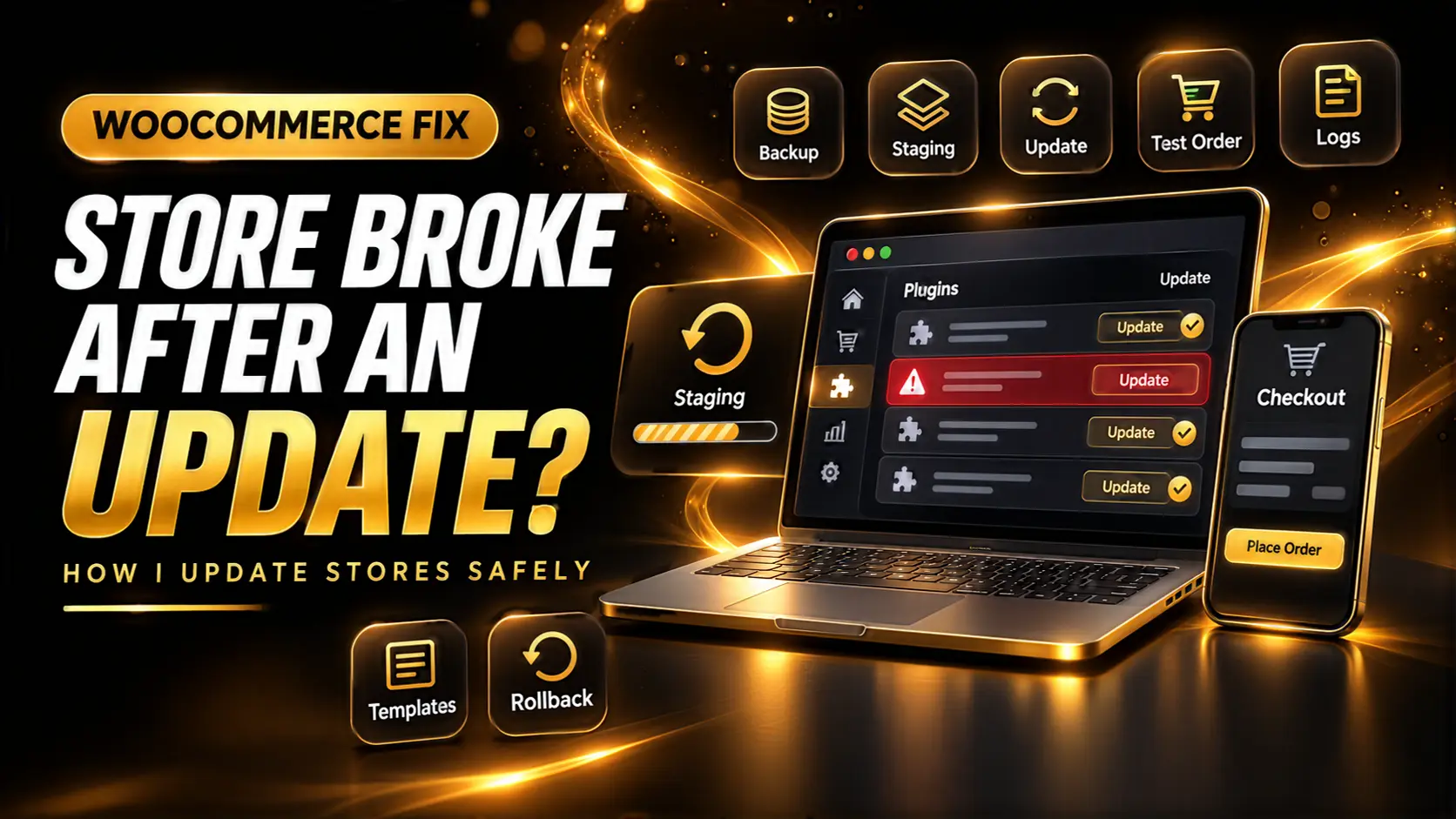
How I Update a Live Store
It isn't fancy. It's just slower than pressing "select all", and that's the point.
- Back up first, and check the backup exists. Files and database. A backup plugin that says "completed" but saved a 0 KB file has fooled people before.
- Read the changelog for WooCommerce and the payment plugin. Not every line. I look for words like "breaking", "template", "checkout", "deprecated" and "requires".
- Update on a staging copy first. Most decent hosts give you one-click staging. If yours doesn't, a local copy works too.
- Update in small groups, not all at once. WooCommerce on its own first, then payment and shipping plugins, then everything else, then the theme. If something breaks, I know which group did it.
- Run a real test order after each group. Add to cart, apply a coupon, check out, see the order land as Processing, check the email arrived. My full list is in how I test a WooCommerce checkout.
- Check WooCommerce > Status for outdated templates and the error log under Status > Logs.
- Then repeat it on live, at the quietest hour the store has. For most of my clients that's early morning, not Friday evening.
For a store with 20 to 30 plugins this takes me about an hour. Compare that to a night of lost orders.
What About Auto-Updates?
I get asked this a lot. My answer: auto-updates are fine for small, simple plugins that don't touch the shop, like a contact form or an SEO plugin on minor versions. I turn them off for WooCommerce itself, the payment gateway, shipping, subscriptions and the theme. Those get updated by a person, on staging, with a test order after.
The worst setup is auto-updates on everything and nobody checking the store afterwards. It works for months, right up to the day it doesn't, and you find out from a customer.
If It Already Broke
Don't keep clicking around trying fixes on the live site. Do this:
- Put the store in maintenance mode if checkout is down, so people aren't paying into a broken flow.
- Roll back the last thing you changed. The WP Rollback plugin can put a plugin back to its previous version in a minute. If you updated everything at once, restore the backup.
- Check the error log. WooCommerce > Status > Logs, and the fatal-errors log in particular. It usually names the plugin and the file.
- Then fix it properly on staging, not live, and update again the slow way.
The store from the screenshot? It was a theme template override. The cart-totals file in the theme was four WooCommerce versions old. I updated the override to match the new template, kept the theme's styling, and checkout was back in about 40 minutes. The store lost one evening of sales. It could have lost zero.
Final Thoughts
Updates aren't the enemy. Skipping them leaves you with security holes and a bigger, scarier jump later. The problem is doing all of them at once, on live, with no backup and no test order. Go slow, in groups, staging first, and always place an order at the end.
If your store broke after an update, or you'd rather not be the one pressing the button, that's part of my WooCommerce bug fixing and maintenance services. And if your checkout feels off but you're not sure why, send me a message for a free 5-minute audit.