WooCommerce HPOS Is Not Optional Anymore: How to Switch Without Breaking Your Store
WooCommerce has moved orders to High-Performance Order Storage, and the old posts storage is now the legacy option. Here is how I check plugins, fix old custom code, sync on staging and switch a live store to HPOS with a safe way back.
Last month a store owner sent me a screenshot with one line: "WooCommerce keeps showing this yellow box, can I just close it?"
The yellow box was the HPOS notice. The store had been running on WooCommerce for five years, had about 38,000 orders, and was still keeping every one of them in the old wp_posts table. She'd been dismissing that notice for over a year.
My answer was: you can close it, but it'll keep coming back, and one day a plugin update won't ask you anymore. HPOS (High-Performance Order Storage) is where WooCommerce is going. New stores have had it on by default since version 8.2. Plugin developers are writing for it first. If your store is still on the old storage, it's time to plan the switch. Plan it, though. Don't just flip it on a Tuesday afternoon.
Here's how I do it.
What HPOS Actually Changes
For years, WooCommerce stored orders the same way WordPress stores blog posts. Each order was a row in wp_posts, and all the details (billing address, totals, payment method, shipping info) went into wp_postmeta as separate rows.
That works fine with 200 orders. With 50,000 orders, wp_postmeta turns into a giant table with millions of rows, all mixed in with your pages, products and blog posts. Searching orders gets slow. The orders screen in wp-admin gets slow. Reports get slow.
HPOS moves orders into their own tables:
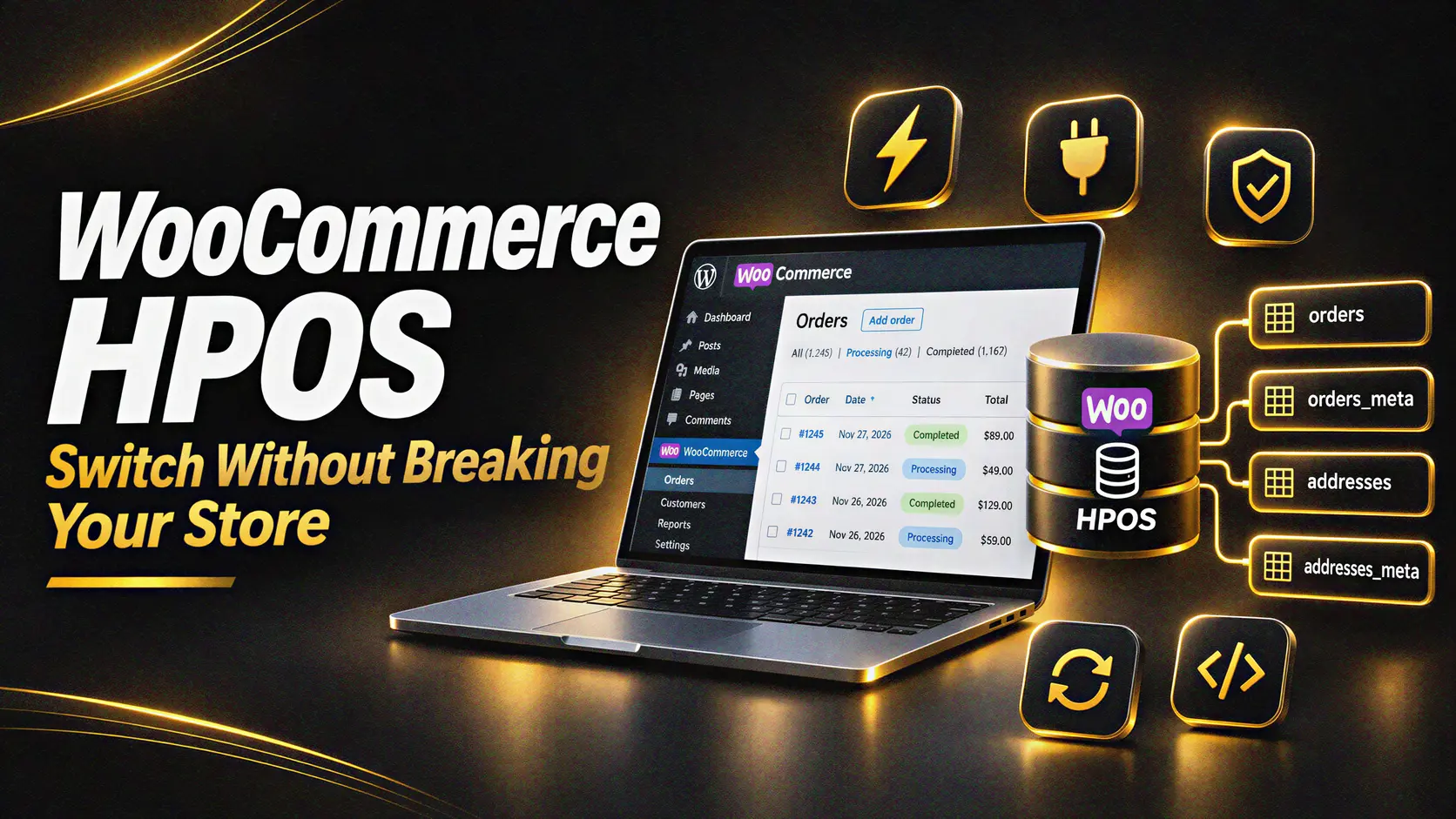
wp_wc_ordersfor the main order datawp_wc_order_addressesfor billing and shipping addresseswp_wc_order_operational_datafor things like cart hash and order keywp_wc_orders_metafor any extra meta plugins add
Proper columns, proper indexes, and nothing else living in there. On bigger stores the difference in the admin is very noticeable. Order search that used to take 8 or 10 seconds comes back almost straight away.
Why I Say It's Not Optional Anymore
Technically, you can still run the old posts storage today. But a few things have changed:
- New plugins assume HPOS. Most well-maintained extensions now declare HPOS compatibility, and some newer ones are built and tested mainly on it.
- The old way is the legacy option. WooCommerce literally labels it "WordPress posts storage (legacy)" in the settings. Legacy options don't get the attention new ones do.
- Migrating later is harder. Every month you wait, there are more orders to sync and more custom code that might be quietly relying on the old tables.
So the question isn't really "should I move?" It's "when, and how do I make sure nothing breaks?"
Step 1: Check Where You Are Right Now
Go to WooCommerce > Settings > Advanced > Features. Under "Order data storage" you'll see which option is selected.
If "High-performance order storage" is already ticked, you're done with this post. Go have a chai.
If it says "WordPress posts storage (legacy)", keep reading. Also look just below that. WooCommerce shows a warning if any active plugins are not compatible with HPOS, and that list is your starting point.
Step 2: Test Your Plugins First (This Is the Real Work)
The switch itself is a radio button. The work is making sure everything around it still behaves.
Check the incompatible list. Click through the warning and see which plugins WooCommerce flags. For each one, check if there's an update that adds support. A lot of the time there is, and the store just hasn't been updated in a while. If a plugin has no update and the developer hasn't touched it in two years, that's a plugin you probably want to replace anyway.
Don't fully trust the list either. A plugin can say it's compatible and still have one feature that reads orders the old way. And plugins that never declared anything at all show up as "unknown". I test the ones that actually touch orders: payment gateways, shipping plugins, invoice and PDF plugins, order export tools, CRM or accounting connectors, and anything multi-vendor like Dokan.
Look at custom code. This is the one people forget. If a developer added code to your theme's functions.php or a custom plugin years ago, there's a good chance it does something like this:
// old way, reads straight from postmeta
$phone = get_post_meta( $order_id, '_billing_phone', true );
That stops working properly once orders live in the new tables. The HPOS-safe version goes through the order object:
$order = wc_get_order( $order_id );
$phone = $order->get_billing_phone();
$note  = $order->get_meta( '_my_custom_field' );
Same goes for any WP_Query with 'post_type' => 'shop_order', or raw SQL joining wp_posts for orders. Those need to become wc_get_orders() calls. I search the whole theme and custom plugin folders for shop_order, _billing_, _order_ and get_post_meta before I touch anything.
Step 3: Do It on Staging, With Sync On
Never do the first switch on the live store. Clone it to staging (most hosts have a one-click option now), and do everything there.
On staging:
- Go back to Settings > Advanced > Features.
- Keep the legacy option selected, but tick "Enable compatibility mode (Synchronize orders between High-performance order storage and WordPress posts storage)".
- Save. WooCommerce starts copying your existing orders into the new tables in the background, in batches, using Action Scheduler.
On a big store this can take a while through the browser. If you have WP-CLI access, it's much faster and you can actually watch it:
wp wc hpos count_unmigrated
wp wc hpos sync
wp wc hpos verify_data
The first tells you how many orders still need copying. The second does the copy. The third compares the old and new data and tells you if anything doesn't match. I don't move on until verify_data comes back clean.
Once everything is synced, switch the radio button to High-performance order storage and leave compatibility mode on for now. That way both tables keep getting updated, and you can switch back if something goes wrong.
Step 4: Test Like a Customer, Then Like the Shop Owner
With HPOS active on staging, I go through the boring but important stuff:
- Place a test order with each payment method the store uses
- Check the order shows up correctly in wp-admin (the URL changes to
admin.php?page=wc-orders, which is normal) - Change order status, add a note, issue a partial refund
- Check order emails, both to the customer and the admin
- Generate an invoice or packing slip if the store uses one
- Run whatever export or sync the owner relies on, like accounting or courier booking
- Log in as a customer and check My Account > Orders
- If it's a marketplace, check the vendor dashboard and vendor order list
If you've tested a checkout before going live, it's the same idea. I wrote down my full list in how I test a WooCommerce checkout before going live, and most of it applies here too.
Step 5: Switch Live, Then Turn Sync Off Later
When staging has been clean for a few days, I do the same steps on the live store. Quiet time of day, fresh backup first. If you've never restored a backup, test that you can before you rely on it.
Then I leave compatibility mode on for a week or two. Yes, it means a little extra database work on every order, but it's cheap insurance. If some forgotten plugin breaks, I can switch back to legacy storage and the orders are all still there.
Once a couple of weeks pass with no problems, I turn compatibility mode off. That's when you actually get the full speed benefit, because WooCommerce stops writing everything twice.
I don't delete the old order data from wp_posts straight away either. There's no rush. Disk space is cheap, and a clean rollback option is worth more.
What Usually Goes Wrong
From the stores I've moved, these are the usual suspects:
- Old custom code reading order meta directly. By far the most common. Orders look fine in the admin, but some custom field on the invoice or the courier label is suddenly empty.
- Abandoned plugins that never got an HPOS update. Usually a small shipping or export plugin someone installed in 2019.
- Sync stuck halfway because WP-Cron isn't running properly on the host. Action Scheduler jobs just sit in pending. Running the sync through WP-CLI gets around this.
- Reports or dashboards built with direct SQL against
wp_posts. They don't error out, they just quietly show wrong numbers. That's the scary one, because nobody notices for weeks.
Final Thoughts
HPOS isn't a fancy new feature you can ignore. It's just how WooCommerce stores orders now, and the old way is slowly being left behind. The good news is the switch itself is safe if you do it in the right order: check plugins, fix custom code, sync on staging, test properly, switch live with sync on, then turn sync off.
The store owner with the yellow box? We moved her over in about a week, most of it waiting on one plugin update. Her orders page went from "go make tea while it loads" to instant. She hasn't sent me a screenshot since, which is how I know it worked.
If your store is still on legacy storage and you'd rather not do this yourself, it's part of my WooCommerce bug fixing and performance services. Send me your store link and I'll tell you what's flagged and what needs fixing before you switch.