Your WooCommerce Product Images Are Too Big: How to Resize and Convert Them to WebP
Product photos straight from the camera can be 4 to 6 MB each, and on mobile data that is why people leave. Here is how I check image weight, resize to around 1200px, convert to WebP and fix WooCommerce image sizes without breaking anything.
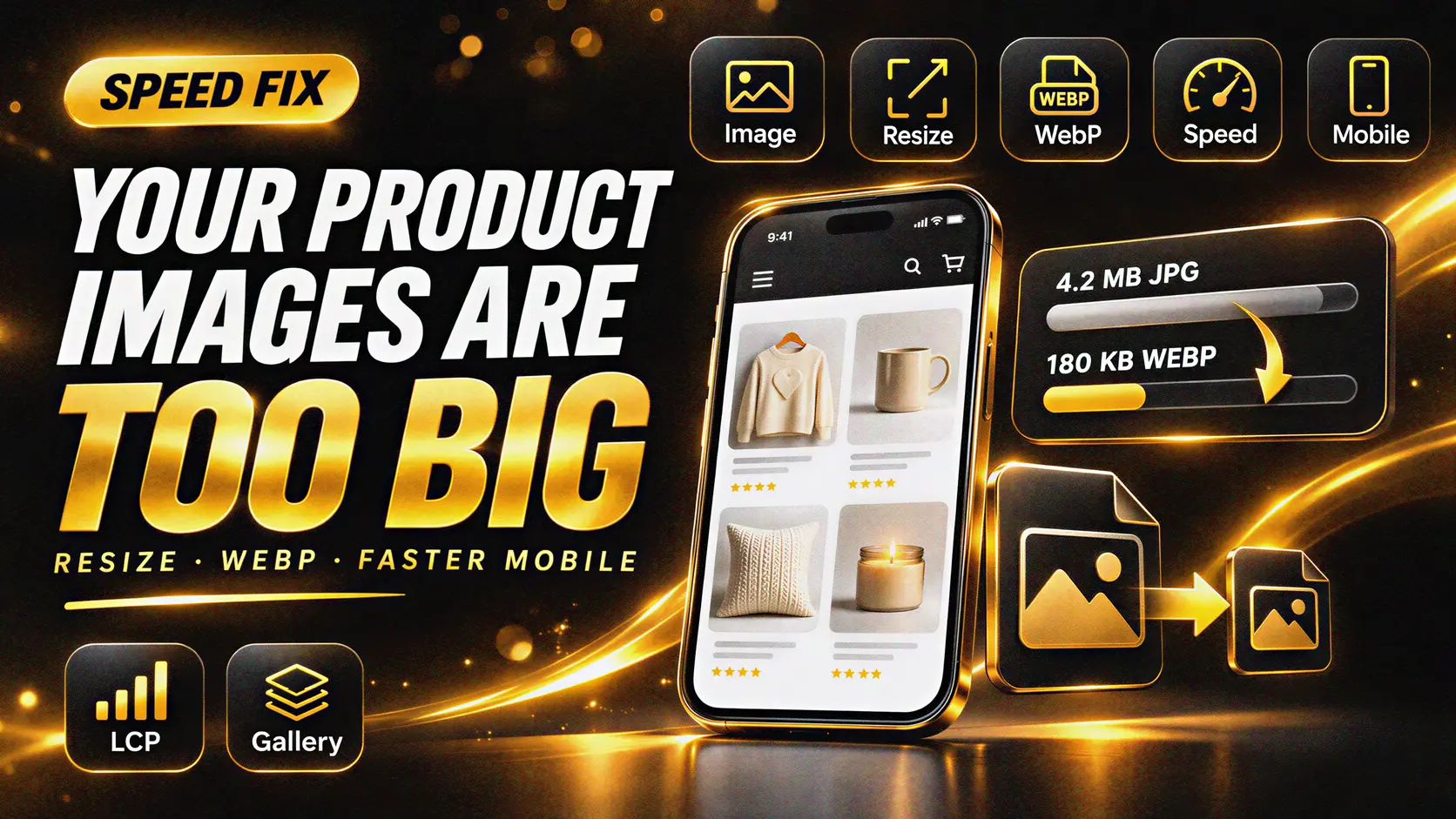
A client messaged me a few weeks ago. Women's clothing store, around 300 products, decent ad budget. Her words: "People click the ad, land on the shop page and leave. On my laptop it's fine."
I opened the shop page on my phone over mobile data. Then I waited. Then I waited a bit more. The product grid filled in one blurry square at a time.
The problem took about two minutes to find. Every product photo was uploaded straight from the photographer's folder. 6000 pixels wide, 4 to 5 MB each. The category page alone was pulling in just over 19 MB. On a laptop with fast wifi you barely notice that. On a phone in a car park, with one bar of 4G, it's a page that never really loads.
I tweeted a short version of this today: your product images are 4 MB each and you wonder why mobile users bounce. Convert to WebP, resize to 1200px, done. That's the short answer. Here's the longer one, including the bits that trip people up.
Why Big Images Hurt More on Mobile
Most store owners check their site on the device they work on. That's usually a decent laptop on office wifi. Your customers are mostly on phones, and a lot of them are on mobile data.
A phone screen shows a product image maybe 400 pixels wide. If you send it a 6000 pixel file, the phone downloads every one of those pixels, decodes them, and then throws most of them away to shrink the picture down. You pay for that in load time and they pay for it in data.
And people don't wait. If the first product images aren't there in a couple of seconds, a good chunk of them hit back and go to the next result. You paid for that click.
Google notices too. The main product image is usually the biggest thing on the page, which makes it your LCP (Largest Contentful Paint) element. A 4 MB LCP image is pretty much a guaranteed fail on mobile Core Web Vitals.
How to Check If This Is Your Problem
You don't need any special tool for a first look.
- Look at your Media Library. Open a few product images and check the file size and dimensions on the right. If you see things like 5472 × 3648 and 4.2 MB, that's your answer.
- Run PageSpeed Insights on a product page and a category page, and switch to the mobile tab. Look for "Properly size images" and "Serve images in next-gen formats". It even tells you how much you'd save.
- Check the Network tab. In Chrome, press F12, go to Network, filter by Img and reload. Sort by size. The big ones jump out straight away.
If your shop page is more than 3 or 4 MB in total, images are almost always the reason.
The Fix: Resize First, Then Convert
The order matters. People convert a 6000 pixel JPG to WebP and are surprised it's still 1.5 MB. WebP is a better format, but it can't fix the fact that the picture is five times bigger than any screen will ever show.
Step 1: Resize to Around 1200px
For most stores, 1200 pixels on the longest side is plenty. That covers the main product image on a desktop and still looks sharp on high-density phone screens.
There's one exception. If you use the WooCommerce zoom or lightbox on product pages, it loads the full-size image when someone hovers or taps. For jewellery, fabric or anything where people want to see detail, I'd go up to 1600px. Not 6000.
WordPress already shrinks anything over 2560px when you upload it (that's the -scaled file you sometimes see). You can lower that limit so new uploads never get stored huge in the first place. This goes in your child theme's functions.php or a small custom plugin:
add_filter( 'big_image_size_threshold', function () {
    return 1600;
} );
That only affects new uploads. Existing images stay as they are, which brings us to the fiddly part.
Step 2: Convert to WebP
WebP files are usually 25 to 35% smaller than a JPG at the same visible quality. Every current browser supports it, and WordPress has accepted WebP uploads since version 5.8.
You have two ways to do it:
- Before upload. If you add products yourself or your photographer sends batches, convert them first. Squoosh (free, in the browser) is fine for a handful. For a folder of 200, I use the cwebp command line tool or a quick ImageMagick batch.
- On the site. A plugin like Converter for Media, EWWW or ShortPixel can convert your existing library and serve WebP to browsers automatically, keeping the original JPG as a fallback. For a store that already has hundreds of products, this is usually the realistic option.
I keep quality around 80. Below 75 you start to see it on fabrics and gradients. Above 85 the file grows and nobody can tell the difference.
Step 3: Fix the WooCommerce Image Sizes
WooCommerce makes its own copies of every product image: a shop thumbnail, a single product image and a small gallery thumbnail. You set these under Appearance > Customize > WooCommerce > Product Images.
Make sure the widths roughly match how your theme actually shows them. I've seen themes that display shop thumbnails at 350px while WooCommerce was set to generate them at 1000px. Every category page was loading images three times bigger than needed, and nobody had looked at that setting in years.
After you change sizes or convert old images, regenerate the thumbnails. WooCommerce does some of this in the background, but I prefer to run it myself so I know it's finished. The Regenerate Thumbnails plugin works, or with WP-CLI:
wp media regenerate --yesOn a big library, run that on staging first or at a quiet time. It hits the server hard while it runs.
Things That Catch People Out
- Lazy loading the main image. Lazy loading is great for images further down the page. It's bad for the main product photo, because it tells the browser to wait. Some optimisation plugins lazy load everything, including that one. Check it.
- The original is still on the server. Converting doesn't always delete the old 5 MB JPGs. That doesn't slow the page, but it eats disk space and makes backups huge. Clear out what's actually unused, carefully. I wrote about deleting unused WordPress images without breaking your site, and my Media Usage Scanner shows what's in use before you delete anything.
- CDN or cache still serving the old files. If you converted and nothing changed, clear the page cache and the CDN cache. I've lost half an hour to this more than once.
- Vendors on marketplaces. On a Dokan store you can fix every image today and vendors will upload new 6 MB photos tomorrow. The upload threshold filter above helps a lot here, because it applies to every upload, not just yours.
What Happened to That Clothing Store
We resized the whole library to 1600px (she uses zoom), converted to WebP at quality 80, fixed the shop thumbnail size that was set far too large, and regenerated everything on staging before pushing it live.
The category page went from just over 19 MB to about 1.4 MB. Mobile load time on that page dropped from around 9 seconds to under 3. Her product pages started passing LCP on mobile for the first time.
The bounce rate on her ad landing pages came down over the next two weeks. I won't claim images were the only reason, because she also tweaked the ads. But she stopped getting the "it's slow on my phone" message from customers, which was the whole point.
No new theme. No redesign. No expensive hosting upgrade. Just pictures that were the right size.
Final Thoughts
Before you spend money on faster hosting or another speed plugin, open your Media Library and look at the file sizes. If your product photos are measured in megabytes, start there. It's the cheapest speed fix there is.
If images aren't the problem, or you've fixed them and the store still drags, I've covered the other usual causes in why your WooCommerce store is slow and how I fix it. And if you'd rather hand the whole thing over, that's part of my WooCommerce speed and bug fixing services. Send me your store link and I'll tell you honestly what's slowing it down.