WooCommerce Shipping Cost Showing Up Too Late? How to Show It on the Cart and Product Page
Customers don't leave because shipping costs money. They leave because they find out at the last step. Here are the WooCommerce settings that hide your shipping price, how to show an estimate on the cart and product page, and a small free-shipping progress snippet.
A few weeks ago I was watching session recordings for a store that sells kitchen stuff. Nice products, decent traffic, lots of add-to-carts. And then the same thing, over and over. Someone fills in their name, email, address, scrolls down, sees the shipping line change from nothing to £6.95, and sits there. Ten seconds. Fifteen. Then the tab closes.
Nothing was broken. The checkout worked fine. The store just waited until the very last step to tell people what they'd actually pay.
I posted about this on X this week: customers leave when shipping costs show up late. Put the estimate on the cart page, not at the last step. A few people asked how to actually do that in WooCommerce, so here's the full version.
Why a Late Shipping Cost Hurts So Much
It's not really about the money. £6.95 isn't a lot. It's the surprise. The customer has already decided "yes, £40, fine" and now the number is £46.95 and they feel a bit tricked. Some of them go and check if Amazon has it. Most of them don't come back.
Surveys on cart abandonment have said the same thing for years: extra costs at checkout (shipping, tax, fees) are the top reason people leave. I touched on it briefly in my 5-minute checkout audit, but it deserves more than one paragraph, because the fix is usually small.
First, Check What Your Store Does Right Now
Open your store in a private window, so you're not logged in and WooCommerce doesn't know your address. Add something to the cart and look at the cart page. You'll see one of three things:
- A real shipping price. Good. Someone set this up properly.
- "Shipping options will be updated during checkout" or "Enter your address to view shipping options". This is the common one, and it's the problem.
- No shipping line at all. Usually means the cart calculator is turned off, or the theme hides it.
Then do it again on your phone, because sometimes the theme shows it on desktop and quietly drops it on mobile.
The Settings That Decide This
Most of it comes down to three settings that are easy to miss because they live in different places.
1. Default Customer Location
Go to WooCommerce > Settings > General and find Default customer location. If it's set to No location by default, WooCommerce has no idea where a new visitor is, so it can't show a shipping price until they type an address.
Switch it to Shop country/region if most of your customers are in the same country as you, or Geolocate if you sell to a few countries. Geolocate needs a free MaxMind licence key under WooCommerce > Settings > Integration, otherwise it falls back without telling you. I've seen that catch people out more than once.
2. Hide Shipping Costs Until an Address Is Entered
Under WooCommerce > Settings > Shipping > Shipping options there's a checkbox called Hide shipping costs until an address is entered. If it's ticked, nothing else matters, the price stays hidden. Untick it unless you have a really good reason (for example, prices that change a lot between postcodes).
3. The Shipping Calculator on the Cart Page
Same screen: Enable the shipping calculator on the cart page. Leave this on. It lets someone outside your default country pop in their country and postcode and see a price before they commit to anything.
If you're using the newer block-based Cart, open the cart page in the editor and check the Cart Totals block too. The shipping calculator option is there as well, and it's sometimes switched off by a theme's starter content.
Make Your Shipping Rules Simple Enough to Show
Sometimes the store can't show an early estimate because the rules are too messy. Five zones, weight-based rates, a table rate plugin, a surcharge for one product category. The real price genuinely depends on the full address.
When I see that, I usually suggest simplifying before adding any plugin:
- One flat rate for your home country. Even if it loses you 50p on some orders, a clear "£3.99 UK delivery" sells better than an exact price nobody sees until the end.
- A free shipping threshold. Add a Free shipping method to the zone with "A minimum order amount" set, say £50. It also pushes the average order value up.
- Separate zones only where the price really changes, like the Highlands or international.
On multi-vendor stores this gets more complicated, because every vendor can have their own rules. If you're building one, I wrote about that in Dokan vendor shipping rates and zones. Short version: decide the rules before you build.
Tell People Before the Cart, Too
The cart page is the minimum. Better is telling people on the product page and across the site, so the number is never a surprise at all.
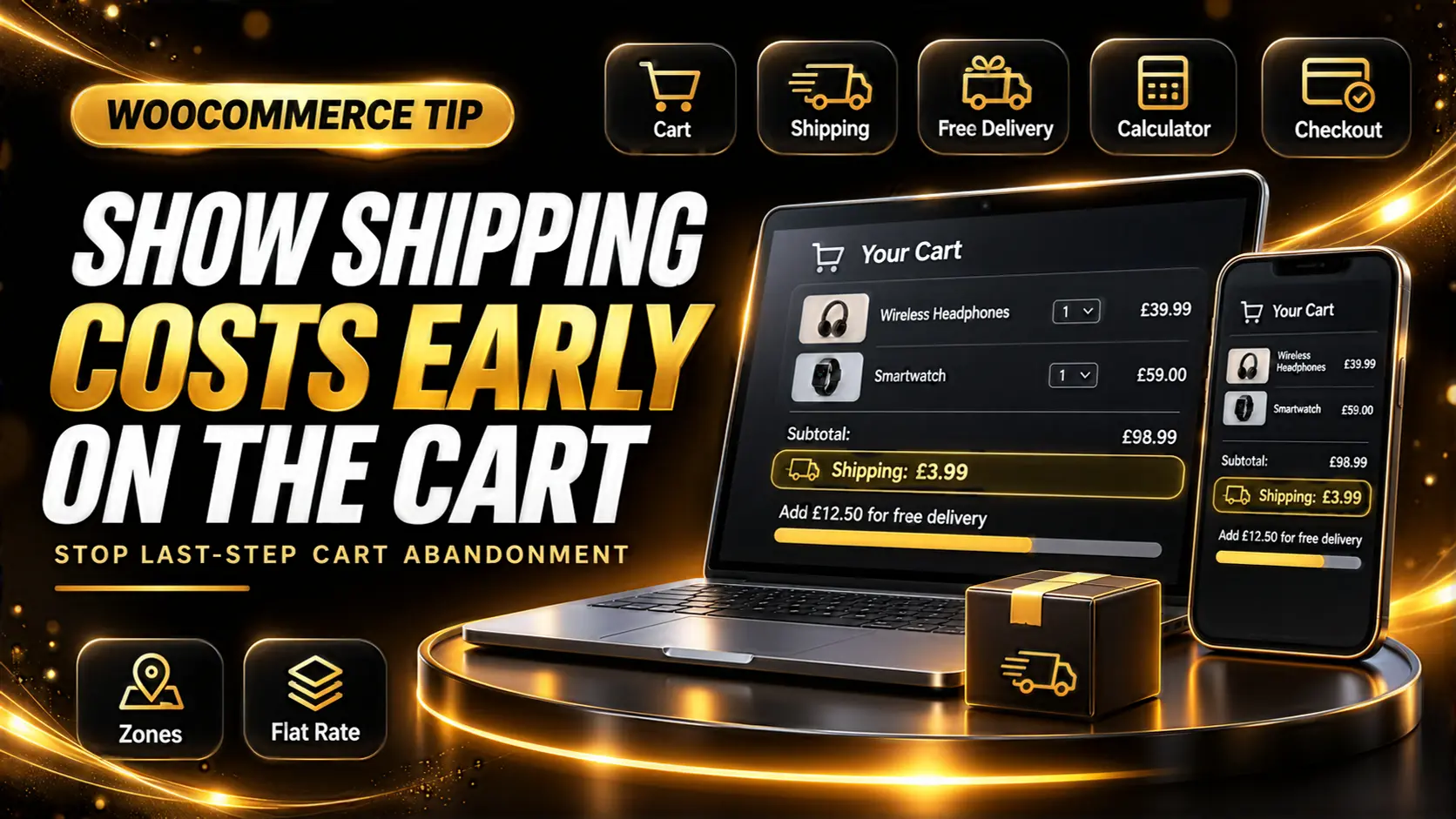
- A line under the Add to Cart button. "Free UK delivery over £50. Otherwise £3.99." Plain text, no plugin. Most themes let you add this with a widget area or a short hook.
- A thin bar at the top of the site with the same message.
- A free shipping progress note in the cart. "Add £12.50 more for free delivery." People actually do go back and add a cheap item for this, I've seen it in the order data.
For the progress note on the classic cart, this is all it takes. Put it in a child theme's functions.php or a code snippets plugin, and change 50 to your own threshold:
add_action( 'woocommerce_before_cart', function () {
    $threshold = 50;
    $subtotal  = WC()->cart->get_displayed_subtotal();

    if ( $subtotal < $threshold ) {
        $left = wc_price( $threshold - $subtotal );
        wc_print_notice( sprintf( 'Add %s more to get free delivery.', $left ), 'notice' );
    }
} );
One warning. This hook only runs on the classic shortcode cart. If your cart page uses the Cart block, it won't show anything, and you'll need a block-friendly way to do it. That trips people up a lot, and it's the same issue I mentioned in why WooCommerce breaks after updates: old hooks just silently don't run on the block checkout.
What Happened With the Kitchen Store
Nothing clever. Default location was set to "No location by default" and the "hide shipping costs" box was ticked, probably by whoever set the store up years ago. I changed both, added a flat UK rate and free delivery over £45, put one line of text under the Add to Cart button, and added the progress note to the cart.
Maybe two hours of work, including testing. Over the next month the drop-off at the shipping step went down noticeably, and the average order went up a few pounds because people were topping up to hit £45. I'm not going to promise you exact numbers, every store is different, but I've never seen this change make things worse.
Quick Checklist
- Open your store in a private window and look at the cart. Is there a real shipping price?
- Set Default customer location to your shop country or Geolocate.
- Untick Hide shipping costs until an address is entered.
- Keep the cart shipping calculator on (and check the Cart block settings).
- Simplify your rates if they're too complex to show early.
- Add a free shipping threshold and tell people about it on the product page.
- Place a test order afterwards. My full routine is in how I test a WooCommerce checkout.
Final Thoughts
People don't mind paying for shipping. They mind finding out at the last second. Show the number early, keep it simple, and most of that last-step drop-off goes away.
If you'd like me to look at your store's cart and checkout, that's part of my WooCommerce bug fixing and optimisation services. Or just send me a message and I'll do a free 5-minute audit and tell you what I'd change first.